
Your team juggles endless email threads. Files vanish into inboxes. Deadlines slip because no one knows the latest version. Sound familiar?
Shared documents fix that mess. They let everyone edit in real time from any device. Confusion drops. Access stays simple. Productivity climbs.
Popular tools like Google Docs or Notion make it easy. You’ll cut meetings and speed up work. This guide shows you how. First, pick the right tool. Then set it up. Next, follow best practices. Watch for pitfalls too. Finally, grab 2026 trends. Ready to end version chaos?
Pick the Right Shared Document Tool to Fit Your Team’s Needs
Teams waste hours on mismatched tools. The fix starts with a good match. Consider size, budget, and workflow.
Google Docs shines for quick edits. Notion builds flexible pages. Confluence handles wikis. SharePoint suits Office fans. Zoho adds security. Bitrix24 mixes chats. Dropbox Paper comments on images.
For deeper options, check top document collaboration tools for 2026. They highlight AI boosts and privacy.
Here’s a quick comparison:
| Tool | Best For | Key Pros | Price Start |
|---|---|---|---|
| Google Docs | Real-time simple edits | Free, unlimited users, Slack links | Free |
| Notion | All-in-one pages | Templates, databases, AI | Free/$8/mo |
| Confluence | Enterprise wikis | Search, versions, Jira ties | $5.75/user |
| SharePoint | Microsoft ecosystems | Co-authoring, Teams integration | $5/user |
| Zoho WorkDrive | Secure storage | Audit trails, encryption | $3/user |
| Bitrix24 | Chat-heavy teams | Unlimited users, calls | Free/$49/mo |
| Dropbox Paper | Multimedia comments | Image notes, presentations | Free/$10/mo |
Match to your needs. Small teams pick free tiers. Enterprises need integrations like Slack or Jira. Test trials first. A poor fit costs time later.

Google Docs and Notion: Best for Fast, Creative Teams
Google Docs offers instant cursor views. Comments pop up inline. It syncs with Drive fast.
Pick it for basic reports. Integrations pull from Gmail or Calendar.
Notion goes further. Blocks stack notes, tasks, and embeds. Templates speed starts.
Creative groups love it. Use for brainstorms or wikis. It links to Slack too.
Google fits simple flows. Notion handles complex ones. Both save hours.
Confluence and SharePoint: Ideal for Structured Enterprise Projects
Confluence excels in search. Pages link like a wiki. Version control tracks all.
Large teams use it with Jira. It organizes knowledge bases well.
SharePoint ties to Teams. Co-author in Word or Excel live.
Microsoft users stay in one suite. Permissions lock sections tight.
These suit big projects. They prevent sprawl in enterprises.
Zoho, Bitrix24, and Dropbox Paper: Secure and Feature-Rich Options
Zoho logs every change. Encryption protects data. It scales for teams.
Bitrix24 adds calls inside docs. Unlimited users help growing groups.
Dropbox Paper turns pages to slides. Comments stick to images.
Security teams pick Zoho. Multimedia ones grab Dropbox. All offer strong history.
Set Up Your Shared Documents for Smooth Team Access
Setup takes minutes. Done right, it prevents headaches. Start with clear structure.
Create docs fast. Invite via links. Set roles early.
Folders keep things tidy. Mobile apps work offline. Changes sync later.
Follow these steps:
- Log in and hit “New document.”
- Name it with project and date, like “Q2-Report-v1.”
- Nest in a main folder, such as “Team Projects/Q2.”
- Share link or email invites.
- Pick permissions: view, comment, or edit.
This cuts email chains. Everyone finds files easy.
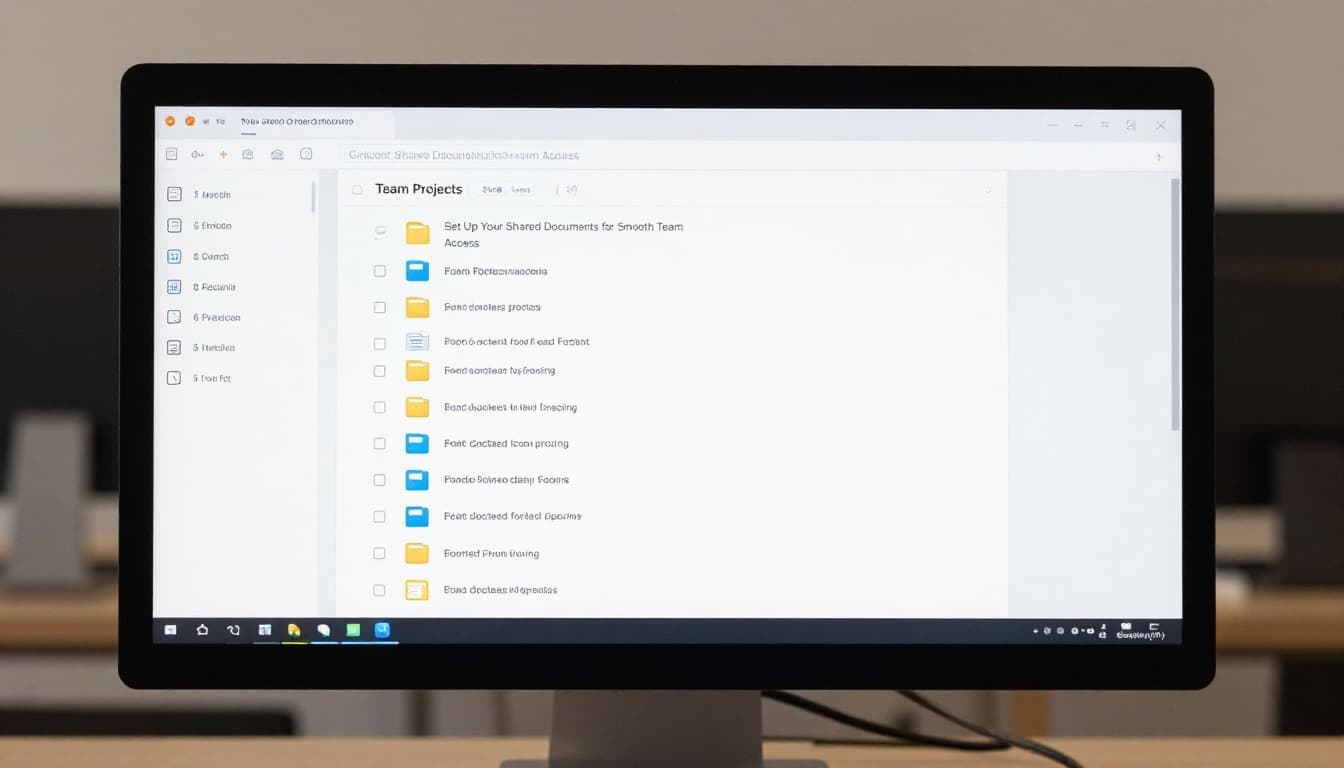
Create and Organize Folders Like a Pro
Templates jumpstart work. Pick one for reports or plans.
Name files specific. Add dates or versions.
Nest folders by project phase. Tags help searches.
No more clutter. Files stay findable always.
Assign Permissions to Keep Control Without Stress
Owners control all. Editors change content. Viewers read only.
Lock sections for approvals. Roles stop accidental deletes.
Test access first. Adjust as needed.
Control builds trust. No edit wars happen.
Unlock Productive Collaboration with Proven Best Practices
Comments beat emails. They stay in context. Tags notify fast.
Real-time edits show cursors. Embed videos for clarity.
Keep chats in docs. Fewer tools mean less switching.
Use templates for reports. Integrate with Slack for pings.
These habits cut meetings. Focus stays on work.
Comment Smartly and Tag for Quick Responses
Thread replies under points. @mentions alert people.
Discussions resolve inline. No side channels needed.
Responses come quick. Issues fix faster.
Track Changes and Revert with Version History
Check history daily. See who added what.
Revert mistakes in seconds. Logs build accountability.
Trust grows. Work stays safe.
Avoid These Sneaky Pitfalls That Derail Team Projects
Too many editors clash. Files turn to mush.
Loose permissions invite deletes. Lost organization hides work.
One tool overloads fast. Fixes exist though.
Use locks or schedules. Folders and roles help.
Stay ahead. Projects finish on time.
Don’t Let Edit Overload Create Chaos
Limit active editors. Tools offer check-in/out.
Schedule turns for sections. Chaos ends.
Overlook Version Control at Your Peril
Enable it always. Review logs often.
Recover lost work easy. No panic.
Tap into 2026 Trends for Next-Level Shared Document Power
AI summarizes pages now. Suggestions fill gaps.
Real-time chats embed inside. Video links too.
Unlimited history stores all. Audits track security.
Deeper ties to Asana or Zoom boost flow. For details, see document collaboration trends in 2026.
Async edits suit remote teams. Privacy options grow.
Update your tool. Efficiency jumps.
Shared documents transform teams. Pick a tool that fits. Set up folders and permissions right. Use comments, tags, and history daily. Dodge edit overload and lost files. Grab AI trends for more power.
Start small. Test on one project. Share your wins in comments below. Smoother work means faster finishes and happy teams. What tool will you try first?